

Estimated Read Time: 5-6 minutes
We’re often asked for advice about passwords and how to manage them, so here are a few tips, along with some handy links…

Always use strong, unique passwords
All the passwords you create should be strong, with enough complexity and length to thwart potential hackers. If you’ve experienced the nightmare of a hacked account, you’ll already know why it’s so important to have an effective password regime in place. It’s no good ‘closing the stable door after the horse has bolted’ and you’ll be able to sleep easier at night…

Choosing passwords with a mixture of uppercase and lowercase letters, numbers and special characters makes them tougher to crack, but bear in mind that it’s the length of the password which makes the biggest difference.
And make sure you always use a unique (different) password for every account. This way, if a password is cracked it contains the incident to just a single account compromise and minimises potential damage.
As strong unique passwords are quite difficult to produce on the spot, consider using an online password generator. There are many available such as the one below (Google for others). Bookmark the page in your browser for quick access whenever you need to create a new password.
Evaluate the strength of your passwords
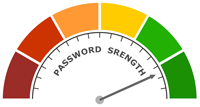
We recommend testing the strength of your passwords using an online Password Strength Testing Tool. This will give you an indication of how long it could take to crack your password.
Consider using Passphrases
Passphrases are simply longer passwords which usually consist of multiple words (sometimes separated with spaces or dashes). Their strength is in their length, though you can make them even stronger by adding different casing, numbers and special characters.
Another benefit of passphrases is that even though they’re longer, they can be much easier to remember and to type in.
Some passphrases use spaces or special characters like hyphens to separate the words within the phrase. Below is an example of a strong passphrase:
tobacco-freeze-prisoner-women
The example above (containing 29 characters), according to the BitWarden Password Strength Testing Tool, would take centuries to crack. Even if the fourth word was omitted, this passphrase would still take centuries to crack.
You can create your own personalised combination of words, but it’s considered to be safer to randomly generate the words using a password generator. If you’re using the 1Password generator look for the option for the ‘memorable’ type password.
Note that some accounts won’t allow you to create such long passwords and will insist upon the inclusion of different casing, numbers and special characters. If so, just use a strong regular password to meet their requirements.
Further reading: Passphrase vs Password: What’s the Difference? (Keeper Password Manager)

Use a Password Manager
Having learned how to create good strong passwords, unique for every account, the next problem is remembering them all. You’ll be surprised how many different passwords you actually have to remember – most people severely underestimate how many they actually have to remember.
Having a system for storing and recalling passwords is as important as creating strong passwords in the first place. So how do you remember all these passwords?
Some people like to write them down on paper or in a book, but there are obvious issues with this approach. This might not be available to you when you need it, such as inputting a password into your smartphone when away from home. It could be mislaid or even worse, stolen during a burglary.
But the biggest problem with this approach is that you’ll forget (or not bother) to write them down – and update them when they change. Plus, your paper summary can eventually become unreadable as passwords are frequently changed.
Another approach is to use the built in password managers which come with browsers such as Chrome, Firefox and Safari. However, the consensus from experts is that stand alone password managers offer much greater security and other useful features.
So we recommend in investing in a dedicated password manager service. There are many to choose from (see the well-established examples further below) – and they’re inexpensive.
With a password manager, every password you use can be strong and easily recalled when needed. In most cases, you only need to remember one very strong master password and when you need to enter a particular password it will be automatically completed for you.
Recommended read: Trusting the tech: using password managers and passkeys to help you stay secure online – National Cyber Security Centre (GOV.UK)

Most password managers will prompt you automatically to store new account passwords when you’re setting up a new account – and offer instant password generation.
Password managers require an investment of time to initially set up and configure, but once you have, you’ll never look back.
Password Managers are the answer to an easier and more secure life!
Enable Two-Factor Authentication (2FA)
Two-factor authentication (2FA) adds an extra layer of security to your accounts by requiring two forms of verification: something you know (like a password) and a code (sent to your phone or generated by an authenticator app). This makes it significantly harder for attackers to gain access, even if they steal or guess your password.

With 2FA, a stolen password alone isn’t enough to break in. It protects sensitive information, such as your finances, emails, and personal data from unauthorized access.
Additionally, 2FA can alert you to potential hacking attempts, as you’ll receive a verification request if someone tries to log in without your consent. It’s easy to set up, available on most platforms, and provides peace of mind by strengthening your online defences.
In short, 2FA is a simple and effective way to protect your accounts from cyber threats, ensuring better security with minimal effort. If you have the option of using 2FA for a service, simply do it, especially for accounts where security is critical.
What to do when an account is hacked

If your account is hacked, act immediately:
- Change passwords: Update the password for the compromised account (and any others using similar credentials). Use a strong, unique password.
- Enable two-factor authentication (2FA): Add an extra layer of security if the platform offers it.
- Check account activity: Review recent activity or login history for unauthorized access. Log out of all sessions if possible.
- Notify the service provider: Contact the platform’s support team to report the hack. They can help secure your account or recover it if locked.
- Update linked accounts: If the hacked account is linked to others, ensure these remain secure by changing passwords (and monitoring activity).
- Scan for malware: Run a security check on your devices to detect and remove malicious software. Using any scanning options your anti-virus software provides. We also recommend the installation and scanning by Malwarebytes (malware removal and protection software).
- Warn contacts: Inform friends or connections to ignore suspicious messages from your account.
- Monitor financials: If sensitive financial information is involved, alert your bank and watch for fraudulent transactions.
Always prioritize preventive measures like regular password updates, 2FA, and being cautious with links.
