

Preparing the PDF documents

Before starting, ensure that your PDF documents are prepared, completed and ready to upload. The files should have appropriate filenames and be in a folder where you can find them.
Avoid uploading documents to websites in other formats such as Microsoft Word (.docx) as users may not be able to open these. Microsoft Word allows you to save files as PDFs using the Save as… command.
Once you have your documents prepared you’re ready to move on to the next step…
Uploading the documents to WordPress
- Log into WordPress and go to the Media Library.
- Select the Add New Media File button (top left).

- Either use the Select Files button and open the relevant PDF file – or drag files into the dotted area.
- Your PDF should now be present in the Media Library.
Copying the PDF File (URL) address
- Staying in the Media Library, select the file you wish to link to. It will pop up in it’s own box.
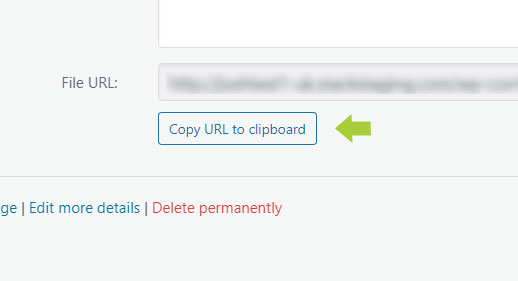
- Look for the File URL (right side panel) and select ‘Copy URL to the clipboard’.
Creating the link
- Leave the Media Library and edit the page or post you wish to add the link to.
- Type the text which will form the link, creating a new bullet point if your link is in a list.
The link text might be, for example “Minutes – Monday 3 March 2025 (pdf)”.
Your link text should be consistent with other links and be relevant. Avoid ever using link text such as ‘click here’. - With the text to be linked carefully selected, select the Link button (it shows a chain link) in the Quick Toolbar and paste in the URL to the file which you copied to the clipboard earlier. Then press the arrow button to confirm the addition of the link.

- After creating your link, click anywhere within the text and press the Link button in the Quick Toolbar again. Then press the Edit Link button (shows as a pen). Under Advanced, tick the box to ‘Open in new tab’. Then click Save.

To finish, save the changes to the page (top right, blue button – Save) and view the page to test it.
If you’ve added your PDF doucument link correctly, when any user selects it, the PDF document should open on a new tab in their browser – or in whatever PDF reader software they use on their device.